haigh.rocks
Personalized email addresses for the Haigh family
your-name-here@haigh.rocks
How It Works
Emails sent to your haigh.rocks address are automatically forwarded to your email account. You just need to set up your email client to send emails from your haigh.rocks address.
Request an Address
Want your own @haigh.rocks email address? Get in touch to request one.
Setup Instructions
Add Your haigh.rocks Email as a Sending Address
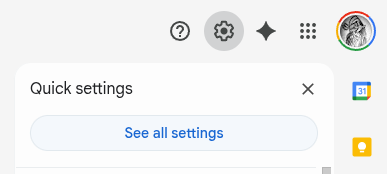
- Open Gmail and click the gear icon in the top right, then select See all settings
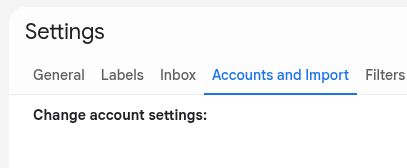
- Go to the Accounts and Import tab
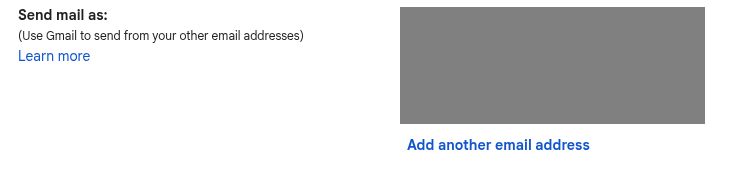
- In the "Send mail as" section, click Add another email address
- Enter your name as you want it to appear in emails
- Enter your haigh.rocks email address
- Uncheck "Treat as an alias" (optional, but recommended)
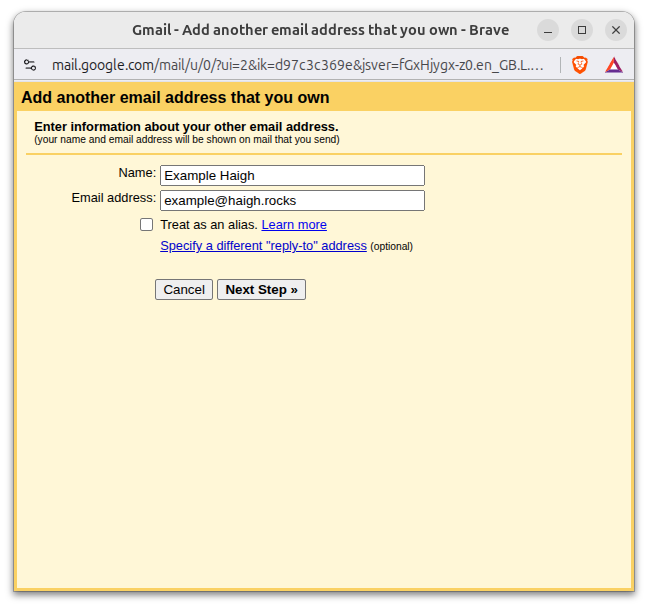
- Click Next Step
- Enter the following SMTP settings:
SMTP Server: mailserver.purelymail.com Port: 587 Username: Your @haigh.rocks email address Password: I will have sent you this Security: TLS 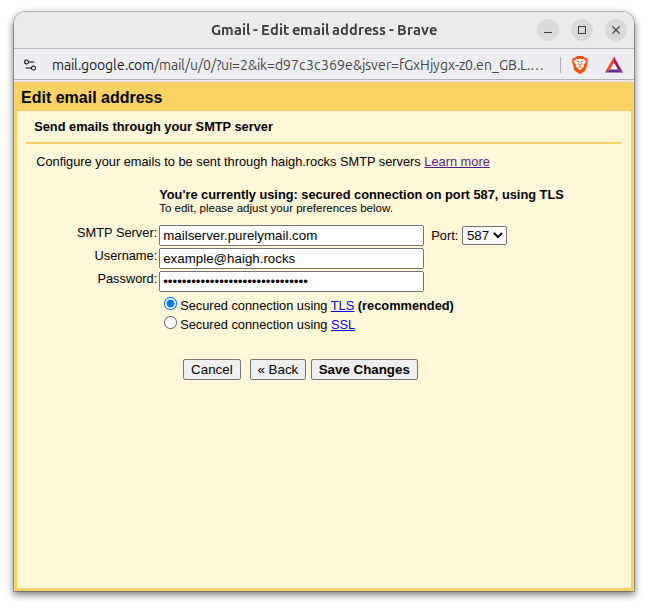
- Click Save Changes
- Gmail will send a verification email to your haigh.rocks address. Since emails are forwarded to your Gmail, check your inbox for the verification code
- Click the verification code in the email and click Verify
Set as Default (Optional)
To make your haigh.rocks email the default address for sending:
- Go back to Gmail Settings → Accounts and Import
- In the "Send mail as" section, click make default next to your haigh.rocks address
Using a Different Email Provider?
If you're using a different email client or provider, you'll need to configure it to send emails from your haigh.rocks address using SMTP.
Use these settings:
| SMTP Server: | mailserver.purelymail.com |
| Port: | 587 |
| Username: | Your @haigh.rocks email address |
| Password: | Provided when you request your address |
| Security: | TLS / STARTTLS |
Need help? drop me an email.
Don't have an address yet? Request one here.